
Compress video, audio, images and PDFs
Compress makes a file smaller while holding on to as much quality as it can. It takes video, audio, images and PDFs, and it works on your own computer, so a four gigabyte recording never has to leave it to shrink.
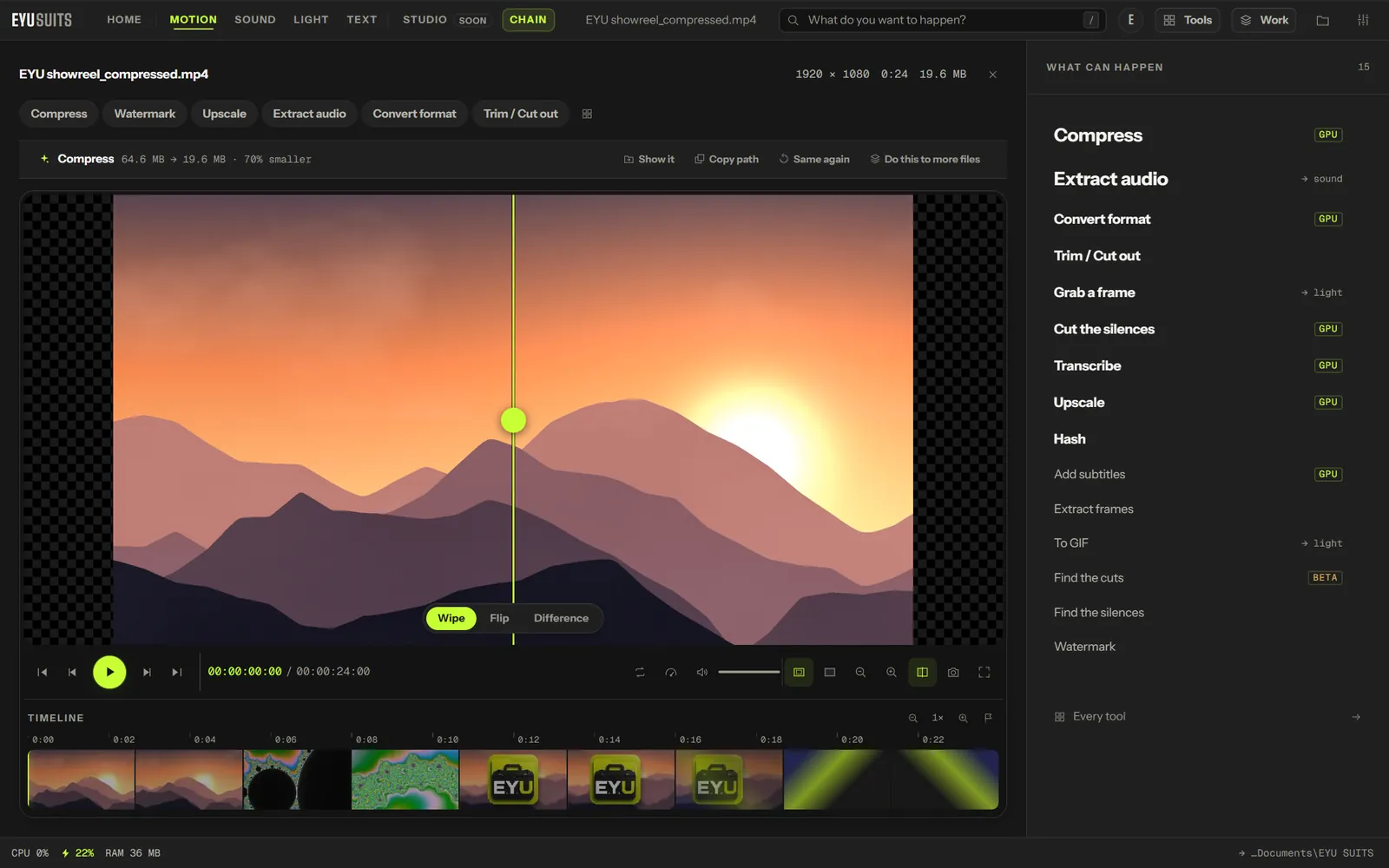
What it does
- Video: one Quality control, with H.264 to play everywhere, H.265 for smaller files, or AV1 for the smallest.
- Video is encoded on your graphics card when there is one, and on the processor when there is not.
- Audio: drop what the ear will not miss, as AAC, Opus or MP3, or pack it tighter and lose nothing.
- Images: PNG, JPG, WEBP, TIFF or BMP, with a lossless option.
- PDFs: keep quality, balance, or aim for the smallest file that will go by email.
What you can set
- Quality: lower numbers keep more detail, higher numbers make a smaller file.
- Encoder effort: fast with a larger file, balanced, or slow with the smallest file.
- Codec: H.264, H.265 or AV1.
- Encode with: the graphics card if there is one, or the processor only.
Works with
Video (MP4, MKV, MOV, AVI, WEBM, M4V, MPG, WMV and FLV), audio (WAV, MP3, FLAC, M4A, AAC, OGG, WMA, OPUS and AIFF), images (PNG, JPG, WEBP, GIF, BMP, TIFF, AVIF and HEIC) and PDF.
How it works
- 01Open the file in EYU SUITS: drop it anywhere in the window, or press Choose a file.
- 02Pick Compress from the tools listed beside it, and change the settings if you want to. The defaults are a sensible start.
- 03Press Run. The result is saved to your EYU SUITS folder, and the original is left as it was.
Questions
Is my video uploaded to compress it?
No. The work happens on your computer, on the graphics card when there is one. The file never leaves the machine.
Which codec should I choose?
H.264 when the video has to play on everything. H.265 or AV1 when a smaller file matters more and the people watching have newer devices. AV1 makes the smallest files, and very old players will not open it.
More in Motion
-
Convert format
Rewrite the file into another format.
-
Trim / Cut out
Keep one section, or take several out of the middle.
-
Join files
Play several files back to back as one.
-
Add subtitles
Put a subtitle file onto the video, painted in or on a track.
-
Extract audio
Pull the soundtrack out as its own file.
-
Grab a frame
Save one moment as a still image.