
Turn a video clip into a GIF
To GIF turns one moment of a clip into a looping animated GIF. Mark the section, watch it loop while you set it up, then choose how smooth, how wide and how many colours.
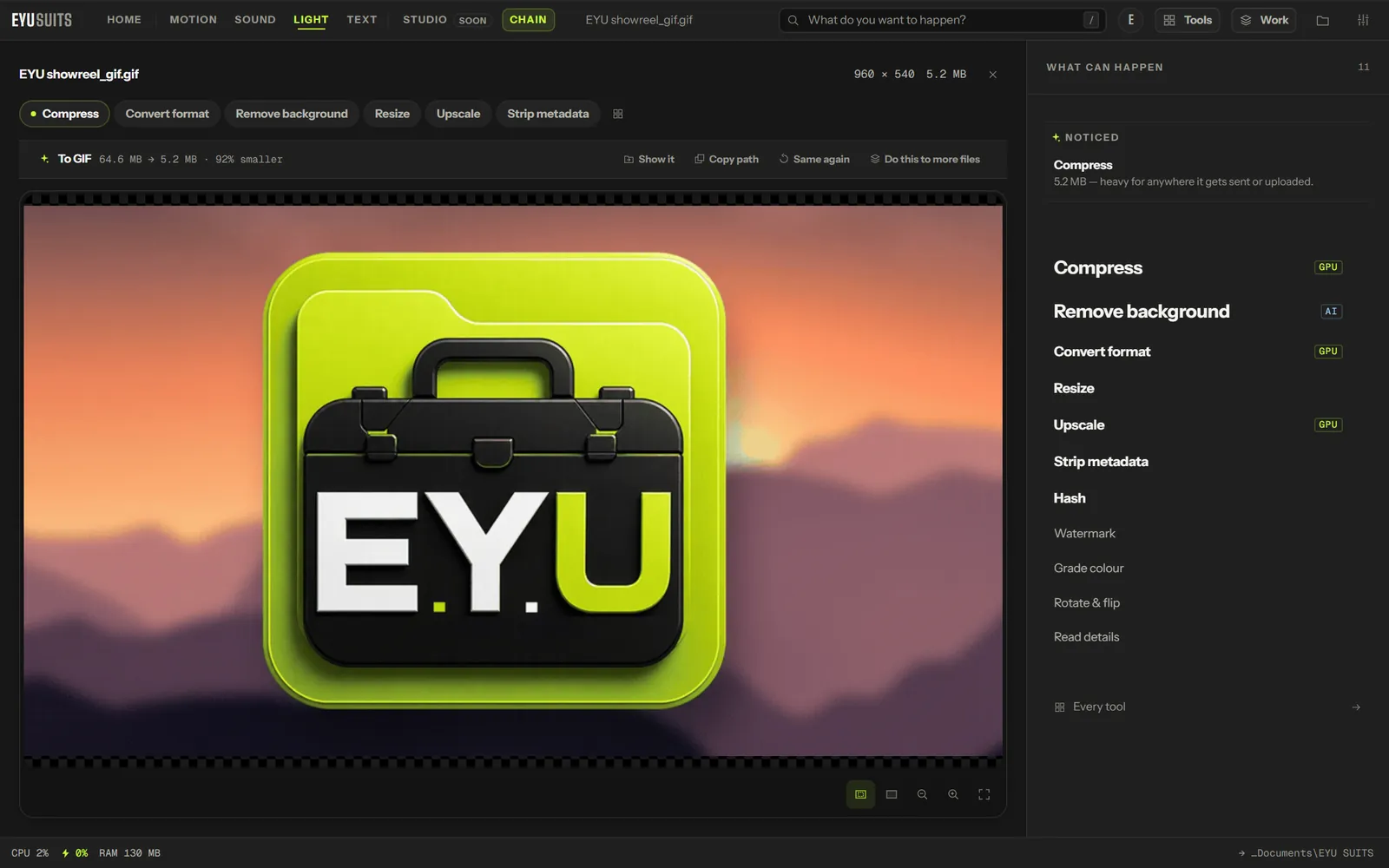
What it does
- The chosen section loops while you work, so you see the GIF before you make it.
- 5 to 30 frames a second, 160 to 1280 pixels wide.
- 256, 128, 64 or 32 colours, with ordered, diffused or no dithering.
- Repeat forever, once, or three times.
- Up to 30 seconds per GIF.
What you can set
- From and To: the section to use.
- Frame rate and Width.
- Colours and Dithering.
- Repeat: forever, once, or three times.
Works with
Video (MP4, MKV, MOV, AVI, WEBM, M4V, MPG, WMV and FLV).
How it works
- 01Open the file in EYU SUITS: drop it anywhere in the window, or press Choose a file.
- 02Pick To GIF from the tools listed beside it, and change the settings if you want to. The defaults are a sensible start.
- 03Press Run. The result is saved to your EYU SUITS folder, and the original is left as it was.
Questions
Why is there a 30 second limit?
A GIF stores every frame as a full picture, so a long one gets very large and slow to load. For anything longer, a short MP4 is far smaller and looks better.
Which dithering should I choose?
Ordered makes the smallest file. Diffused gives smoother gradients in a bigger file. None suits flat graphics and screen recordings.
More in Motion
-
Compress
Make the file smaller while holding on to quality.
-
Convert format
Rewrite the file into another format.
-
Trim / Cut out
Keep one section, or take several out of the middle.
-
Join files
Play several files back to back as one.
-
Add subtitles
Put a subtitle file onto the video, painted in or on a track.
-
Extract audio
Pull the soundtrack out as its own file.